FAQ for loopers
How to add questions to the FAQ: Follow these instructions
General
Can I just download the AAPS installation file?
No. There is no downloadable apk file for AAPS. You have to build it yourself. Here’s the reason why:
AAPS is used to control your pump and give insulin. Under current regulations in Europe, all systems classed as IIa or IIb are medical devices that require regulatory approval (a CE mark) which needs various studies and sign offs. Distributing an unregulated device is illegal. Similar regulations exist in other parts of the world.
This regulation is not restricted just to sales (in the meaning of getting money for something) but applies to any distribution (even giving away for free). Building a medical device for yourself is the only way to use the app within these regulations.
That’s why apks aren’t available.
How to begin?
Start with Preparing to start with AAPS: it walks you through everything below in more detail.
First of all, you have to get loopable hardware components:
an Android smartphone (Apple iOS is not supported by AAPS - you can check iOS Loop) and
Secondly, you have to setup your software components: AAPS, CGM/FGM source and a reporting server.
Thirdly, you have to learn and understand the OpenAPS reference design to check your treatment factors. The founding principle of closed looping is that your basal rate and carb ratio are accurate. All recommendations assume that your basal needs are met and any peaks or troughs you’re seeing are a result of other factors which therefore require some one-off adjustments (exercise, stress etc.). The adjustments the closed loop can make for safety have been limited (see maximum allowed temporary basal rate in OpenAPS Reference Design), which means that you don’t want to waste the allowed dosing on correcting a wrong underlying basal. If for example you are frequently low temping on the approach of a meal then it is likely your basal needs adjusting. You can use Autotune to consider a large pool of data to suggest whether and how basals and/or ISF need to be adjusted, and also whether carb ratio needs to be changed. Or you can test and set your basal the old-fashioned way.
What practicalities of looping do I have?
Password protection
If you don’t want your settings to be easily changed, you can protect them with a password, a PIN or your phone’s biometric authentication (fingerprint, face). Open Settings > Protection > Settings protection and choose the type of protection. You can also protect the whole app or only boluses in the same place. See Settings protection for details.
Android Wear Smartwatches
If you use the AAPS watch app to bolus or change settings, every request has to be confirmed on the watch: after you send it, the watch shows a summary with a CONFIRM button. See Remote control from a Wear OS watch.
Disconnect pump
If you take your pump off for showering, bathing, swimming, sports or other activities you must let AAPS know that no insulin is delivered to keep IOB correct.
The pump can be disconnected using the loop icon on the AAPS main screen: press it and select Disconnect pump with the duration you need. If the activity takes longer than planned, press the icon again and pick a new duration: you don’t need to reconnect first. See Disconnecting the pump for showering or activity for how to avoid a lack of insulin during long disconnections.
Recommendations not only based on one single CGM reading
For safety, recommendations made are based on not one CGM reading but the average delta. Therefore, if you miss some readings it may take a while after getting data back before AAPS kicks in looping again.
Further readings
There are several blogs with good tips to help you understand the practicalities of looping. Some of them are no longer online: the links below marked “archived copy” open a saved copy on the Internet Archive.
Fine-tuning Settings See my CGM (archived copy)
Why DIA matters See my CGM (archived copy)
Limiting meal spikes #DIYPS
Hormones and autosens See my CGM (archived copy)
What emergency equipment is recommended to take with me?
You have to have the same emergency equipment with you like every other T1D with insulin pump therapy. When looping with AAPS it is strongly recommended to have the following additional equipment with or near to you:
Battery pack and cables to charge your smartphone, watch and (if needed) BT reader or Link device
Pump batteries
Access to your backups, both on the phone and in the cloud (e.g. Google Drive, Dropbox), so that you can set up AAPS again on another phone (see Creating and restoring back-ups):
the current apk of AAPS and of any other apps you use (e.g. xDrip, Juggluco, BYODA).
your keystore file (from building the apk) and its password,
your latest settings export files from AAPS and your other apps,
your AAPS master password: you cannot import the settings file without it. If you forgot it, see How to reset the master password?
How to organize my backups?
Export settings very regularly: after each pod or reservoir change, after modifying your profile, when you have validated an objective, if you change your pump… Even if nothing changes, export once a month. Keep several old export files.
AAPS can do this for you: it can export your settings automatically (for example with an Automation after each pod change) and save the export directly to a cloud folder (Google Drive). See Creating and restoring back-ups.
How can I safely and securely attach the CGM/FGM?
You can tape it. There are several pre-perforated ‘overpatches’ for common CGM systems available (search Google, eBay or Amazon). Some loopers use the cheaper standard kinesiology tape or rocktape.
You can fix it. You can also purchase upper arm bracelets that fix the CGM/FGM with a band (search Google, eBay or Amazon).
APS algorithm
Why does OpenAPS AMA show “dia: 3” even though I have a different DIA in my profile?
With OpenAPS AMA selected in Configuration > APS, Open plugin shows the data sent to the algorithm. In its Profile section, dia is always 3.0 or less:
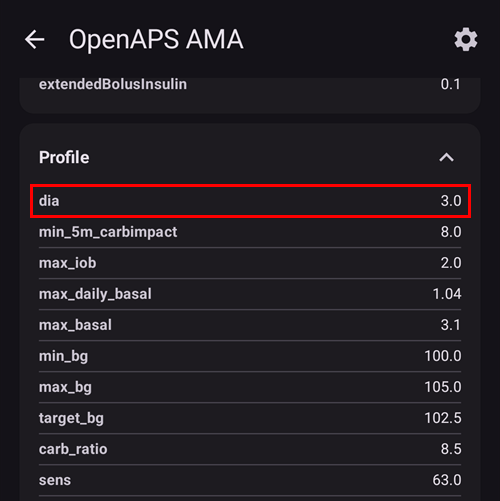
In AMA, DIA actually doesn’t mean the ‘duration of insulin acting’. It is a parameter, which used to be connected to the DIA. Now, it means, ‘in which time should the correction be finished’. It has nothing to do with the calculation of the IOB. In OpenAPS SMB, there is no need for this parameter any longer.
Other settings
Nightscout settings
AAPSClient (or AAPS) does not upload data: “Blocked by…”. What can I do?
The NSClient status shows why no data is sent:
Blocked by connectivity options: the connection settings do not allow the current connection. For example, you are on cellular data but only Wi-Fi is allowed, or you are not on one of the allowed Wi-Fi networks (SSIDs).
Blocked by charging options: the connection settings only allow syncing while the phone is charging (or only on battery), and this is not the case right now.
No connectivity: the phone has no internet connection.
Check the NSClient connection settings: Use cellular data, Use roaming, Use WiFi, WiFi SSID, Sync on battery and Sync while charging.
CGM settings
Why does AAPS say ‘SMB always and after carbs disabled because active BG source doesn’t support advanced filtering’?
Enable SMB always and Enable SMB after carbs can only be used with a trusted BG data source: a sensor and CGM app that can tell AAPS which sensor the readings come from. With any other BG source, AAPS switches these two options off and shows this message. Check the list of trusted sources and, if your sensor is listed, make sure you use one of the CGM apps shown for it. See also Smoothing blood glucose data.
Pump
Batteries
Looping can reduce the pump battery faster than normal use because the system interacts through Bluetooth far more than a manual user does. It is best to change battery at 25% as communication becomes challenging then. You can set warning alarms for pump battery by using the PUMP_WARN_BATT_P variable in your Nightscout site. Tricks to increase battery life include:
reduce the length of time the LCD stays on (within pump settings menu)
reduce the length of time the backlight stays on (within pump settings menu)
select notification settings to a beep rather than vibrate (within pump settings menu)
only press the buttons on the pump to reload, use AAPS to view all history, battery level and reservoir volume.
AAPS app may often be closed to save energy or free RAM on some phones. When AAPS is reinitialized at each startup it establishes a Bluetooth connection to the pump, and re-reads the current basal rate and bolus history. This consumes battery. To see if this is happening, enable Log app start event in the NSClient Advanced settings: Nightscout will receive an event at every restart of AAPS, which makes it easy to track the issue. To reduce this happening, turn off battery optimization for AAPS so that the phone stops closing it down: see battery savings below.
clean battery terminals with alcohol wipe to ensure no manufacturing wax/grease remains.
for Dana R/RS pumps the startup procedure draws a high current across the battery to purposefully break the passivation film (prevents loss of energy while in storage) but it doesn’t always work to break it 100%. Either remove and reinsert battery 2-3 times until it does show 100% on screen, or use battery key to briefly short circuit battery before insertion by applying to both terminals for a split second.
see also more tips for particular types of battery
Changing reservoirs and cannulas
The reservoir must be changed directly on the pump, then the change is recorded in AAPS. Follow the step-by-step guide for changing the pump reservoir and cannula.
Wallpaper
You can find the AAPS wallpaper for your phone on the phones page.
Daily usage
Many of the situations below can be prepared once as a scene: a preset that switches profile, temp target and other settings with one tap. AAPS offers ready-made templates, for example Exercise, Sleep, Alcohol or Bathing.
Hygiene
What to do when taking a shower or bath?
You can remove the pump while taking a shower or bath. For this short period of time you may not need it, but you should tell AAPS that you’ve disconnected so that the IOB calculations are correct. See description above. The Bathing scene template does this for you.
Work
Depending on your job, you may choose to use different treatment factors on workdays. As a looper you should consider a profile switch for your typical working day. For example, you may switch to a profile higher than 100% if you have a less demanding job (e.g. sitting at a desk), or less than 100% if you are active and on your feet all day. You could also consider a high or low temporary target or a time shift of your profile when working much earlier or later than regular, or if you work different shifts. You can also create a second profile (e.g. ‘home’ and ‘workday’) and do a daily profile switch to the profile you actually need, or save your workday settings as a scene.
Leisure activities
Sports
You have to rework your old sports habits from pre-loop times. If you simply consume one or more sports carbs as before, the closed loop system will recognize them and correct them accordingly.
So, you would have more carbohydrates on board, but at the same time the loop would counteract and release insulin.
When looping you should try these steps:
Make a profile switch below 100%: tap the profile name on the main screen, tap the round ▶ button, then set Percentage and Duration.
Set an activity temp target above your standard target. With a percentage below 100 % and a duration, the same Activate screen offers a Temporary target / Activity switch that starts both at once.
If you are using SMB make sure “Enable SMB with high temp targets” and “Enable SMB always” are disabled.
Pre- and post-processing of these settings is important. Make the changes in time before sport and consider the effect of muscle filling.
The Exercise and Post-exercise Night scene templates bundle these settings, so you can start them with one tap. If you do sports regularly at the same time (i.e. sports class in your gym) you can consider using automation to start the profile switch and TT, or the scene. Location based automation might also be an idea but makes preprocessing more difficult.
The percentage of the profile switch, the value for your activity temp target and best time for the changes are individual. Start on the safe side if you are looking for the right value for you (start with lower percentage and higher TT).
Sex
You can remove the pump to be ‘free’, but you should tell AAPS so that the IOB calculations are correct. See description above.
Drinking alcohol
Drinking alcohol is risky in closed loop mode as the algorithm cannot predict the alcohol influenced BG correctly. You have to check out your own method for treating this using the following functions in AAPS:
Deactivating closed loop mode and treating the diabetes manually or
setting high temp targets and deactivating UAM to avoid the loop increasing IOB due to an unannounced meal or
do a profile switch to noticeably less than 100%
The Alcohol scene template is a starting point you can adapt to your own method.
When drinking alcohol, you always have to have an eye on your CGM to manually avoid a hypoglycemia by eating carbs.
Sleeping
How can I loop during the night without mobile and Wi-Fi radiation?
Many users turn the phone into airplane mode at night. If you want the loop to support you when you are sleeping, proceed as follows (this will only work if your CGM app runs on the same phone as AAPS, such as xDrip, Juggluco or BYODA; it will NOT work if you get the BG-readings via Nightscout):
Turn on airplane mode in your mobile.
Wait until the airplane mode is active.
Turn on Bluetooth.
You are not receiving calls now, nor are you connected to the internet. But the loop is still running.
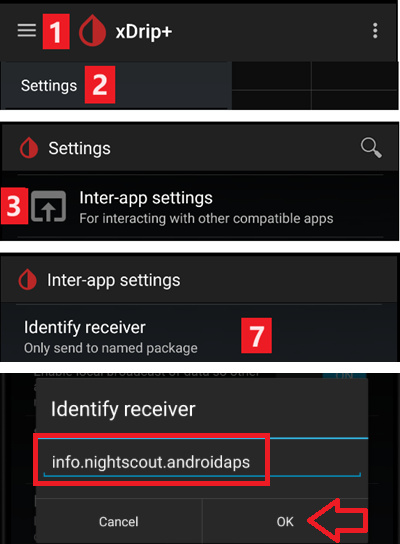
Some people have discovered problems with local broadcast (AAPS not receiving BG values from xDrip) when phone is in airplane mode. In xDrip, go to Settings > Inter-app settings > Identify receiver and enter info.nightscout.androidaps.
If you want different settings at night (for example a higher target), the Sleep scene template is a good starting point.
Traveling
How to deal with time zone changes?
With Dana R and Dana R Korean you don’t have to do anything. For other pumps see time zone traveling page for more details.
Medical topics
Hospitalization
If you want to share some information about AAPS and DIY looping with your clinicians, you can print out the guide to AAPS for clinicians.
Medical appointment with your endocrinologist
Reporting
You can either show your Nightscout reports (https://YOUR-NS-SITE.com/report) or check Nightscout Reporter.
Frequent questions on Discord and their answers…
My problem is not listed here.
See where to get help. If you found the solution yourself, remind us to add it to this list!
Building and installing
I have problems, errors building the app.
Please check the troubleshooting page for the way you build AAPS (see Building AAPS):
building with a browser: Browser build: troubleshooting,
building with Android Studio: Troubleshooting Android Studio.
Build error: file name too long
This error can happen when building with Android Studio: the build stops with an error stating the file name is too long. Possible solutions: Move your sources to a directory closer to the root directory of your drive (e.g. “C:\src\AndroidAPS”).
From Android Studio: Make sure “Gradle” is done syncing and indexing after opening the project and pulling from GitHub. Execute a Build->Clean Project before doing a Rebuild Project. Execute File->Invalidate Caches and Restart Android Studio.
Alert: Running dev version. Closed loop is disabled
AAPS shows this message when you run a development (dev) version without engineering mode: in a dev version, closed loop only works in engineering mode.
The dev version is meant for testing, not for actual looping: read Development branch before going further.
To turn on engineering mode:
Place a file named
engineering_modein theextrasubfolder of your AAPS directory (the folder you chose in the setup wizard, usuallyAAPS/extra). Any file will do as long as it is properly named.Restart AAPS so that it finds the file.
Hint: Make a copy of an existing logfile and rename it to “engineering_mode” (note: no file extension!).
Objectives
I’m stuck on an objective and need help.
First read Completing the Objectives. If you are still stuck, screen capture the question and answers and post them on the Discord AAPS channel. Don’t forget to tell which options you choose (or not) and why. You’ll get hints and help but you’ll need to find the answers.
Settings, passwords and backups
How to reset the master password?
If you forgot your master password, you can reset it to your pump’s serial number:
Create an empty file named
PasswordReset(no file extension) in theextrasubfolder of your AAPS directory (usuallyAAPS/extra).Restart AAPS. Your pump must be connected: AAPS shows “Waiting for pump…” and needs to read the pump serial number within 30 seconds.
To restart, quit AAPS with menu (☰) > Exit, then open it again. AAPS only looks for the file when it starts from scratch. Closing the screen or swiping the app away is not enough, because AAPS keeps running in the background. If “Waiting for pump…” does not appear, use Force stop in the Android App info of AAPS, or restart your phone. Installing your current AAPS apk again over the installed app also works: it keeps your settings.
AAPS shows “Password set!”: your master password is now your pump serial number. The
PasswordResetfile is deleted automatically.Open Settings > Protection > Master password and set a new password.
If the pump is not reached in time, nothing changes: check the pump connection and try again.
This only resets the master password. A settings, application or bolus password or PIN is not reset, but you can always use the master password instead of them.
Old settings files
Settings files exported with the old master password can only be imported with that old password.
Where can I find settings files?
Settings files are stored in the preferences subfolder of the AAPS directory you chose in the setup wizard (for example /internal storage/AAPS/preferences). If you set up a cloud folder (Google Drive), your exports can also be saved there. See Creating and restoring back-ups.
WARNING: Make sure not to lose your password as without it you will not be able to import an encrypted settings file!
How do I import settings from earlier versions of AAPS into AAPS v3 or v4 ?
You can only import settings (in AAPS v3 or v4) that were exported using AAPS v2.8x or later. If you were using a version of AAPS older than v2.8x or you need to use setting exports older than v2.8x, then you need to install AAPS v2.8 first. Import the older settings of v2.x in v2.8. After checking that all is OK, you can export settings from v2.8. Install the current AAPS version and import v2.8 settings in it.
If you use the same key to build the old and the new version, you won’t even have to import settings. You can install the new version over the old one.
There were some new objectives added. You’ll need to validate them.
Where can I delete treatments?
Open the menu (☰) and select Treatments history. Long press an entry to select it, tap more entries if needed, then tap the trash can icon and confirm. See Treatments history.
Phone and connection problems
AAPS stops everyday around the same time.
Google Play Protect may shut down AAPS every morning on some phones. If this happens, go to the Google Play options and disable Google Play Protect.
Check for “cleaning” apps (ie CCleaner etc) and uninstall them.
Turn off all battery optimizations for AAPS (see battery savings below).
How to configure battery savings?
Your phone may suspend AAPS and related apps (CGM app, Bluetooth) when you are not using it. AAPS then cannot do its work, and Bluetooth connections to the sensor and pump (or RileyLink) may be shut down, causing “pump unreachable” alerts and communication errors.
Turn off battery optimization for AAPS, your CGM app (e.g. xDrip) and the Bluetooth system app. The way to do this depends on the phone’s brand, model and Android version:
see Battery optimization for Pixel, Samsung and Huawei phones,
in AAPS, open the menu (☰) > About and tap Don’t kill my app?, or visit Don’t kill my app for other brands.
If you are not sure that battery savings cause your problem, you can temporarily turn off all battery savings on the phone: your battery will drain faster, but you will quickly see if the problem goes away.
Pump unreachable alerts several times a day or at night.
Your phone may be suspending AAPS or even Bluetooth, causing it to lose the connection to the pump or RileyLink (see battery savings above).
You can also change when the alert is raised: press the Settings (gear) icon on the top right of the main screen, then select Local alerts > Pump unreachable threshold (30 to 300 minutes). Check your pump’s page: some recommend a value, e.g. 120 minutes for Omnipod DASH.
My link/pump/pod is unresponsive (RL/OL/EmaLink…)
With some phones, there are Bluetooth disconnects from the Links (RL/OL/EmaLink).
Some also have non responsive Links (AAPS says that they are connected but the Links can’t reach or command the pump).
First try the Reset RileyLink button on the pump screen (see your pump’s page: Medtronic, Omnipod Eros). If this does not help, the easiest way to get all these parts working together is:
Power off the Link.
Quit AAPS (menu (☰) > Exit).
Long press the AAPS icon, open the Android App info, tap Force stop, then Storage > Clear cache (do NOT clear storage/data!).
Rarely some phones may need a reboot here. You can try without reboot.
Power on the Link.
Start AAPS.
On the pump screen, tap Pair RileyLink and select your Link again.
Remote control
Configuring and Using the AAPSClient remote app
AAPSClient is a separate app that lets a caregiver follow and control AAPS remotely. Since AAPS v4, controlling AAPS from AAPSClient needs a one-time pairing between the two apps. See:
The AAPSClient app: installing, first start and pairing,
Master ↔ Client control: what can be controlled and how pairing works,
Treatments I enter on the Nightscout website are not applied
That is hardened mode. While client control is on — always in Simple Mode — AAPS takes changes only from paired clients, not from the Nightscout website or other apps. Enter them on a paired AAPSClient instead.
Alerts and warnings
I have a red warning badge (red triangle) / AAPS won’t enable closed loop / Loop stays in LGS / I had a yellow triangle
The red warning badge on the BG source shortcut is a security feature in AAPS. See BG warning sign for the full explanation.
A red warning badge on the BG source shortcut in the bottom bar (the red triangle of older versions) means that you have duplicate BGs and AAPS can’t calculate precisely the deltas. A closed loop is switched to Low Glucose Suspend mode: it still reduces or suspends your basal to protect you against lows, but it gives no correction insulin. You need to delete one BG of each duplicated value in order to clear the warning. Tap the shortcut to open your BG source screen: the duplicate is highlighted in red. Long press one line you want to delete, check one of each lines that are doubled and tap the trash icon. You may need to reset the AAPS databases if there are too many double BGs. In this case, you’ll also lose stats, IOB, COB, selected profile.
Once the warning is gone, AAPS does not go back to Closed Loop by itself. Press the loop icon on the main screen and select Closed Loop again.
Possible origin of the problem: xDrip and/or NS backfilling BGs.
The yellow triangle of older versions meant unstable delay between each BG reading (BGs not received every 5 min regularly, or missing BGs), which often happens with Libre or after a G6 transmitter change. AAPS 4 no longer shows it: it recalculates the values in the background and the loop works correctly.
Omnipod DASH
Can I move an active DASH Pod to another phone?
The Pod state is included in the exported settings, so an active Pod can be moved to another phone by exporting the settings right before the move and importing them on the other phone. This is not officially supported and there is a risk of losing the Pod: if possible, try it when your Pod is about to expire.
Read these sections first:
Export and import settings on the Omnipod DASH page, and Tubeless pumps: on the new phone, tick Also replace pump settings and use a file exported while wearing your current Pod,
Discarding a pod, to remove the Pod from the old phone afterwards. Keep the old phone in airplane mode until the Pod is discarded, so that the two phones never talk to the Pod at the same time.