Temp-Targets
What are Temp-Targets and where can I set and configure them?
A Temp-Target (or short TT) is an AAPS feature that allows the user to alter their BG target range for planned activities. This is achieved by AAPS manipulating the user’s insulin usage.
A glucose target, particularly if it is only short-term (less than 4 hours in duration), does not need to be the actual value you expect or want your glucose level to get to, rather, it is a good way to tell AAPS to be more or less aggressive, while still keeping your glucose levels in range.
Temporary targets can be defined within those boundaries :
Temporary target |
|
|---|---|
Minimum |
4 mmol/L or 72 mg/dL |
Maximum |
10 mmol/L or 180 mg/dL |
AAPS provides three built-in Temp-Target presets suitable for exercise (Activity), meals (Eating Soon) and predicted hypoglycemia (Hypo). They live on the Temp Target screen (Manage → Temp Target), which you can also open by simply tapping the target chip on the main screen.
Users should have realistic expectations on the results that can be achieved when selecting a Temp-Target in AAPS. The success of attaining a desired BG target will vary depending on a multiple factors ranging from: the reliability of the user’s AAPS settings, overall BG control, IOB, insulin sensitivity, insulin resistance, level of exertion undertaken during the exercise and so forth.
A Temp-Target can take approximately 30 minutes or longer in order to attain a desired BG target. It is impossible for AAPS to achieve a BG target with immediate effect and users should be mindful of this when selecting a Temp-Target.
The sections below summarize the features of Temp-Target Activity, Temp-Target Eating soon and Temp-Target Hypo. The values shown are the shipped defaults — you can adjust each preset to your own needs.
TT - Activity

BG Target (default preset, adjustable)
AAPS will aim to reach 140 mg/dL or 7.8 mmol/L for 1 h 30 min
Other considerations users may wish to factor in when selecting:
Depending on BG level, AAPS will “decrease” insulin usage in order to reach BG target. If BG target is not within range (i.e. above the users Profile’s selected BG target), then AAPS may keep the basal on.
In closed loop mode, SMB:
may be deactivated (discussed further below); and/or
basal may be activated if AAPS is in negative IOB or <0.
Users may also wish to consider:
selecting this TT 1-2 hours before the planned exercise to ensure reduced IOB (the correct timing for this TT will vary person to person); and
selecting a temporary Profile (decrease) for the duration of the planned activity to ensure reduced IOB;
ensuring TT is timed to be deactivated shortly before the exercise, because IOB is already reduced and some users experience a rapid rise in BG post exercise.
TT - Eating soon

BG Target (default preset, adjustable)
AAPS will aim to reach 90 mg/dL or 5.0 mmol/L for 45 minutes
Other considerations users may wish to factor in when selecting:
In closed loop mode, SMB:
will remain activated; and/or
basal may be also activated depending on the user’s Profile’s settings.
Depending on BG level, AAPS will “increase” insulin usage within the user’s AAPS setting parameters in order to achieve the desired BG target.
TT - Hypo

BG Target (default preset, adjustable)
AAPS will aim to reach 160 mg/dL or 8.9 mmol/L for 1 hour
Other considerations users may wish to factor in when selecting:
In closed loop mode, SMB:
may be deactivated (discussed further below); and/or
basal may be activated if AAPS is in negative IOB or <0.
Setting and managing temporary targets (Manage → Temp Target)
In AAPS v4 you manage your TT presets and start a temporary target from the Manage screen (bottom navigation) → Temp Target (“Manage and set temporary targets”).

The screen has three parts:
Preset carousel (top) — swipe through your TT presets. Each card shows the preset’s name, target and duration; the currently running TT is highlighted.
Editor (middle) — the Temporary target and Duration that will actually be applied, plus an Activation date/time.
Action bar (bottom) — ➕ add, 🗑️ delete and the ▶ activate button.
Selecting a preset card loads its target and duration into the editor.
Built-in vs custom presets
The built-in presets — Eating Soon, Activity and Hypo — always exist and cannot be deleted (you can change their values and save, though). Any presets you create yourself are custom and can be edited or deleted freely.
Activating a temporary target
Swipe to the preset you want (its values load into the editor), optionally adjust the target/duration in the editor, then tap ▶ Activate. A confirmation shows the exact target, duration and reason before anything starts:

After you confirm, the temporary target starts immediately (or at the chosen Activation time) and runs for the set duration.
Editing the numbers is a one-off — it does not change the preset
The target and duration in the editor are the values Activate will use right now. If you change them, that change is temporary: it applies only to this activation and does not modify the saved preset. This lets you “tweak and activate” a one-off TT (for example activate Activity at a slightly different target today) without permanently altering the preset.
Saving changes to a preset
If you do want to keep an edited value, Save it: when the editor differs from the selected preset, a Save icon appears in the top toolbar. Tapping it stores the current target and duration (and name, for custom presets) back into the selected preset. For the built-in presets, a Revert to defaults button (↺) also appears in the action bar: it brings back the preset’s default values.
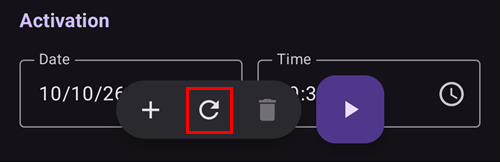
So the rule of thumb is:
Activate → use the numbers once (preset unchanged).
Save → make the numbers the preset’s new defaults.
To put a built-in preset back the way it shipped, select it and tap the ↺ Revert button — it appears in the action bar only for a built-in preset whose values currently differ from its factory defaults, and it restores that preset’s original target and duration.
Adding and removing presets
➕ Add — create a new custom preset from the current editor values. The new card appears in the carousel.
🗑️ Delete — remove the selected custom preset. Built-in presets (Eating Soon, Activity, Hypo) cannot be deleted.
Once you have at least two custom presets, you can also change their order in the carousel: tap the Reorder icon (⇅) in the top bar, step the centred card with the ◀ / ▶ move buttons, then confirm with ✓. The built-in presets keep their places — only custom presets can be moved. (The controls look the same as reordering profiles.)
Your presets are part of the synced configuration, so they are shared across your master and paired clients.
Other ways to set a temporary target
A temporary target can also be set without opening this screen:
with the TT toggles in the Carbs dialog — see below,
with a preset button on the QuickLaunch toolbar — the Temp Target Presets category in Configure QuickLaunch offers a one-tap button for each of your presets,
from a Wear OS watch (the Temp Target menu item / tile),
from a paired client — see Master ↔ Client control,
as part of a scene (the Temporary target action), or
from an Automation rule (Start temp target / Stop temp target).
Where can I select a Temp-Target?
The quickest way is to tap the target chip on the main screen (it shows your current target range):

This opens the Temp Target screen described above — swipe to a preset and tap ▶ Activate. The same screen is also reachable via Manage → Temp Target.
When entering carbs, you don’t need to open the Temp Target screen at all: the Carbs dialog (Treatments → Carbs) has Start Hypo TT, Start Eating soon TT and Start Activity TT toggles at the top. Switch one on and the corresponding preset is activated together with the carb entry:

Automatic Hypo TT
If you open the Carbs dialog while your glucose is below 72 mg/dL (4 mmol/L), AAPS pre-selects the Start Hypo TT toggle for you (unless a higher temporary target with a longer remaining duration is already running).
Where can I change the default Temp-Target and override with my own preferences?
Each preset’s target and duration are edited directly on the Temp Target screen — there is no separate preferences entry for this anymore:
Open the Temp Target screen (tap the target chip, or Manage → Temp Target).
Swipe to the preset you want to change.
Adjust Temporary target and/or Duration in the editor.
Tap the Save icon that appears in the top toolbar.

While the editor differs from a built-in preset’s factory values, a ↺ Revert button also appears in the action bar — tap it to restore the preset’s original target and duration.
How do I cancel a Temp-Target?
While a temporary target is running, the target chip on the main screen shows the target and its remaining time. Tap it — on the Temp Target screen the running preset is highlighted as ACTIVE, and a red ✗ Cancel button appears at the end of the toolbar at the bottom, just left of the ▶ Activate button. Tap it and confirm:

A running temporary target can also be stopped from a Wear OS watch, from a paired client, or by an Automation rule (Stop temp target).
Hypo Temp-Target
Temp-Target Hypo enables AAPS to prevent the user from experiencing low blood sugar by reducing insulin intake. If the user predicts their BG will go low: usually, AAPS should handle it, but much will depend on the stability of the user’s AAPS’ settings. A Temp-Target Hypo enables the user to get ahead of the predicted low and update AAPS to reduce insulin.
Sometimes when hypo-treated carbs are eaten, the user’s BG can rapidly rise, and AAPS will correct against the fast rising BG by enabling SMBs.
Some users wish to avoid SMBs being given during Temp-Target Hypo. This is achieved by deactivating ‘Enable SMB with high temp target’ in Settings → OpenAPS SMB (see further below):
Advanced, objective 9: the user can enable “High temp target raises sensitivity” for Temp-Targets of 100 mg/dL (5.6 mmol/L) or higher in OpenAPS SMB, AAPS will be more sensitive.
Advanced, objective 9: the user can deactivate “Enable SMB with high temp target”, so that even if AAPS has COB > 0, “Enable SMB with low temp target” or “Enable SMB always” enabled and OpenAPS SMB active, AAPS will not give SMBs while high temp targets are active.
Note: if you open the Carbs dialog while your blood glucose is less than 72 mg/dL or 4 mmol/L, AAPS pre-selects the Start Hypo TT toggle automatically.
Activity Temp-Target
Before and during exercise, the user may require a higher target to prevent hypoglycemia during the activity.
To simplify Temp-Target Activity, the user can configure a default Temp-Target - Activity to raise BG levels by reducing insulin usage in order to slow down BG fall and avoid hypoglycemia.
New users to AAPS may need to experiment and personalize their Temp-Target Activity default settings in order to optimize this feature to work best for them. Everyone is different when it comes to attaining stable BG control during exercise. See also the sports section in FAQ.
Some users also prefer to activate a Profile switch (being a Profile decrease < 100% to reduce insulin delivery by AAPS) before and while Temp-Target Activity is on. You can start both in one step: tap the profile name on the main screen, tap the round ▶ button, set a Percentage below 100 % and a Duration, then switch on Temporary target / Activity. See Change the Profile Percentage.
Advanced, objective 9: users can enable ‘High temp target raises sensitivity’ for Temp-Targets of 100 mg/dL (5.6 mmol/L) or higher in OpenAPS SMB. A target of 99 mg/dL (5.5 mmol/L) is a normal target, neither high nor low. Then AAPS is more sensitive.
Additionally, if ‘Enable SMB with high temp target’ is deactivated, AAPS will not deliver SMBs, even with COB > 0, ‘Enable SMB with low temp target’ or ‘Enable SMB always’ enabled and OpenAPS SMB active.
Eating soon Temp-Target
Temp-Target Eating soon can help accomplish a gentle drive down of BG and ensure there is ample IOB before eating.
This can be an important tool for those users who do not pre bolus, however the efficacy of Temp-Target Eating soon will depend on a number of factors including: the user’s settings, if they eat a low carb diet and whether they are using a fast acting insulin (like Fiasp or Lyumjev) in order to eliminate the need to pre bolus. Ordinarily, until users are experienced in AAPS they should expect to pre bolus when using Temp-Target Eating soon and this is particularly so, if eating a high carb diet.
You can read more about the “Eating soon mode” in the article ‘How to do “eating soon” mode’ or here.
Advanced, objective 9: If you use OpenAPS SMB and have ‘Low temp target lowers sensitivity’, AAPS works a little bit more aggressively. For this option there is a requirement for Temp-Target to be 98 mg/dL (5.4 mmol/L) or lower.
How do I turn off SMB during Temp-Targets?
To action this open Settings → OpenAPS SMB and deactivate ‘Enable SMB with high temp target’.

This will ensure AAPS will not give SMBs, even with COB > 0, ‘Enable SMB with low temp target’ or ‘Enable SMB always’ enabled and OpenAPS SMB active.