Update with a browser (fork)
Tip
You built AAPS with AAPS Builder? You don’t need this page: see Updating AAPS with AAPS Builder.
Build yourself instead of download
AAPS is not available to download, due to regulations concerning medical devices. It is legal to build the app for your own use, but you must not give a copy to others! See FAQ page for details.
Note
In case you want to upgrade AAPS with a browser for the first time: copy your back-up keystore file to your Google Drive. Then follow the Browser Build AAPS procedure instead of this guide. Instead of creating a new keystore, you must select the one you have copied from your computer. This operation will be mandatory only the first time, then for successive upgrades you will be able to follow this guide.
Tip
Switching to AAPS Builder? AAPS Builder is the simpler browser build: no fork to sync, and you download the app directly from GitHub. You don’t have to switch: this guide keeps working. If you switch, first get a copy of your keystore from your fork, as explained in Coming from the previous browser build. Otherwise the new build cannot update the AAPS on your phone.
Overview for updating to a new version of AAPS with a browser
In case you experience problems, see separate page for browser build troubleshooting.
Export your settings
Export your settings from the existing AAPS version on your phone. You might not need it, but better be safe than sorry.
See the Export & import settings page if you don’t remember how to do this.
Update your GitHub repository
Select Repositories.
Scroll down and select your own AndroidAPS repository.

Verify you are using your own copy of AndroidAPS (Forked from nightscout/AndroidAPS)
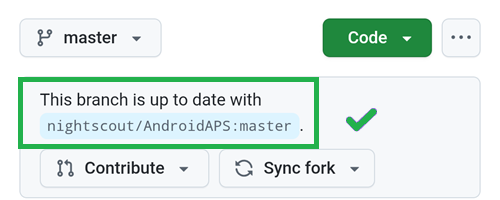
Tap Sync Fork to update it (the number of commits behind might differ from the picture)

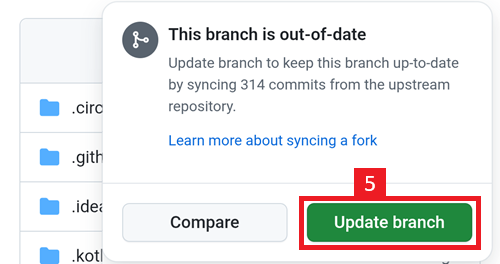
Tap Update Branch
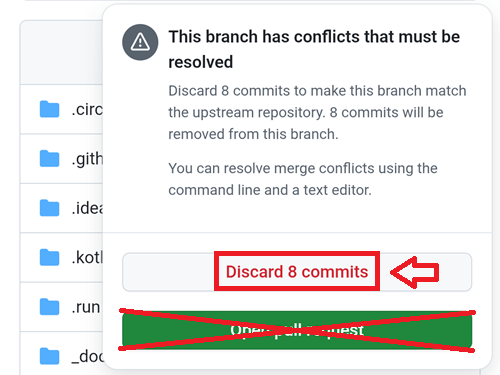
Note: if you have modified your copy of AndroidAPS by mistake, you will see this screen. Discard all changes (commits) to return to the released version.
You have now synchronized (updated) your own copy with the latest release of AAPS. Good job.
Run the Workflow to Build the Signed APK
In your GitHub copy of AndroidAPS, select Actions.
Expand All Workflows.
Select AAPS-CI

Scroll down and tap Run Workflow.
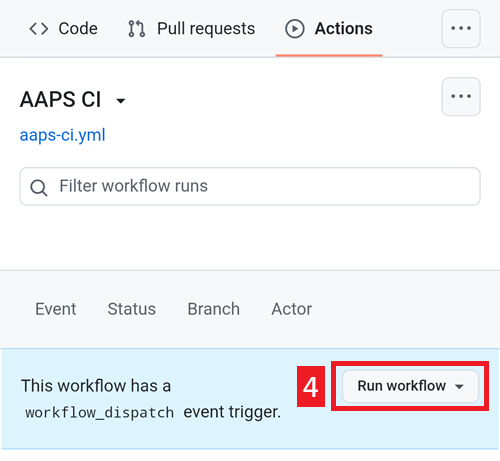
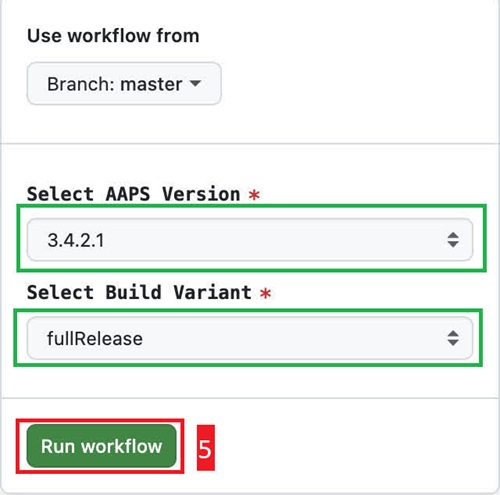
Keep the branch set to master. In Select AAPS Version, check that 4.0.0, the newest version at the top of the list, is selected. If your fork is not up to date, the preselected version is an older one: if you run the workflow with the form as it opens, you rebuild that older version and your app is not updated. Choose the variant (fullRelease), and then tap Run workflow.
Note
The list of versions is part of the workflow in your fork. If 4.0.0 is missing, your fork is not synchronized yet: go back to Update your GitHub repository.
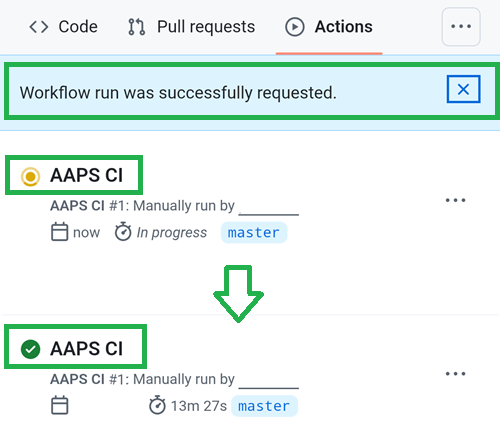
You will see the message Workflow run was successfully requested. Refresh your browser page and you will be able to monitor the build progress. When the action completes, the AAPS CI action will show a green tick mark. You have successfully built the updated version of AAPS. This means that the Master and Wear apk is now directly saved into your Google Drive (as per below). AAPSClient apk can be downloaded from Github > nightscout > AndroidAPS here
Install the AAPS APK
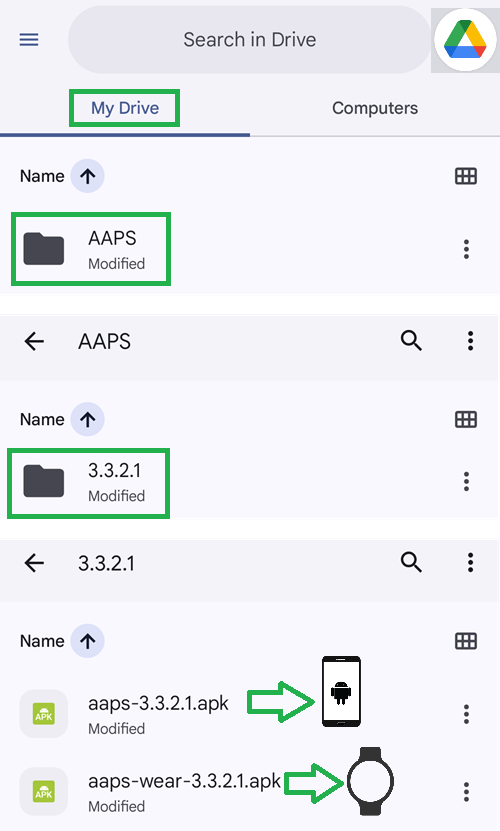
Open your Google Drive
Browse into AAPS, select the new version folder and you will find both the phone and Android Wear versions.
Note
From September 2026, Google’s Android developer verification may block installing the APK by tapping the file, depending on your country. Free workarounds are explained on that page.
Continue here
Troubleshooting
If anything goes wrong, don’t panic.
Take a breath!
Then check if your problem is already documented: see AAPS Builder troubleshooting if you build with AAPS Builder, or Browser build troubleshooting otherwise.
If you need further help, please reach out to other AAPS users on Facebook or Discord.