Profile switch & Profile Percentage
This section will explain what is a Profile Switch and Profile Percentage. You can learn how to create a Profile in Your AAPS Profile.
When first embarking on your AAPS journey, you will need to create a Profile, understand how to action a Profile Switch and learn the impact of a Profile Percentage within AAPS. The features of a Profile Switch or Profile Percentage can be particularly beneficial for:
the Menstrual Cycle - a percentage adjustment within a Profile can be set up in Automations in order to allow AAPS to accommodate for different stages of the hormone cycle and with predicted insulin resistance.
Exercise - a percentage adjustment within a Profile can be set up in Automations for exercise in order to reduce basal intake.
Night or pattern shift workers - a time shift in Profile can be set up for pattern shift workers by altering the number of hours in the Profile to how much later/earlier the user will go to bed or wake up.
Why use a Profile Percentage rather than a temporary basal adjustment? To be more effective in its application a Profile Percentage applies a proportionate reduction or increase across: basal, ISF and I:C. This ensures a balanced approach is calculated by AAPS when administering the user’s insulin intake. Little benefit can be gained in a user’s Profile in AAPS by a basal reduction if the algorithm continues to deliver the same ratios for ISF and I:C.
Change the Profile Percentage from the main screen
You need at least one saved Profile. A Profile Percentage is always applied through a Profile Switch: you activate a Profile again, this time with a percentage.
Coming from AAPS 3?
A long press on the profile name no longer opens the profile switch dialog. Tap the profile name, then tap the round ▶ button at the bottom right: it opens the same settings (percentage, duration, Activity temp target).
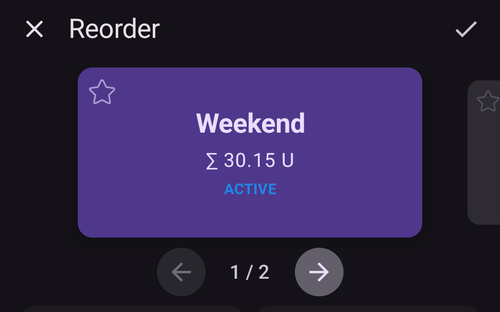
On the main screen, tap the profile name (next to the star icon). The Profile screen opens on the card of the running Profile, marked ACTIVE.

To keep the same Profile, leave the ACTIVE card selected. To change Profile at the same time, swipe to another card.
Tap the round ▶ button (Activate) at the bottom right. The Activate screen opens.
Set the Percentage with − / + (steps of 5 %), or type it in (30 to 250 %). The field always starts at 100 %: it does not show the percentage that is running now. For example, enter 80 for 20 % less insulin, or 120 for 20 % more.
Set the Duration in minutes:
0 keeps the new percentage until you make another Profile Switch;
any other value ends the switch after that time, and AAPS goes back to the Profile that was running before.
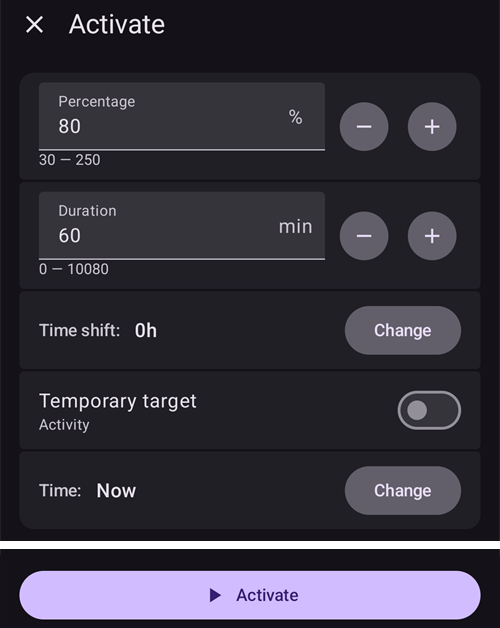
Tap ▶ Activate at the bottom of the screen. Check the summary in the Profile switch dialog and tap OK.

Back on the main screen, the profile name shows the percentage and the remaining time, for example Normal (80%) (59’), and turns yellow while a switch with a duration is running. A star marks the switch on the glucose graph. See the main screen.

To go back to 100 % before the end, repeat the steps and keep Percentage at 100 and Duration at 0.
One-tap percentages
If you often use the same percentage (sport, illness), add a Profile shortcut to the Quick Launch bar, or create a scene. Both apply a profile with a preset percentage and duration in one tap.
Managing and activating profiles (Manage → Profile)
In AAPS v4 profiles are managed and activated from the Manage screen (bottom navigation) → Profile (“Manage and activate profiles”).
The Profile screen shows your profiles as a swipeable card carousel. The card of the running profile is marked ACTIVE and shows its total daily basal (e.g. ∑ 30.15 U). Below the selected card you see that profile’s details — the Insulin type, and the IC, ISF, basal and target schedules with graphs.
When a temporary switch is running, the ACTIVE card shows its percentage and time shift with the time left, for example 110% +2 h · 2 h 40 min, above a progress bar. Both are refreshed every 30 seconds. The details below then have two columns: the values of the profile in blue, and the values in use with the percentage in red.

The buttons at the bottom act on the selected profile: ➕ Add, ✏️ Edit, ⧉ Clone and 🗑️ Delete, and the round ▶ Activate button on the right. For how to fill in the four schedules in the editor (IC / ISF / BAS / TARG), see Create and edit Profiles.
⧉ Clone uses the two-squares icon often used for copy, but there is nothing to paste: it makes the duplicate in one step. Confirm Clone profile “Normal”? and a new profile named Normal copy is added at the end of the carousel and selected, ready for ✏️ Edit (where you can also rename it). This is not the same as cloning a past Profile Switch from the Treatments history, which creates a new profile with the percentage and time shift applied. See Keep a profile switch for later use.
Only the ▶ Activate button? Your settings are protected, so the screen opens read-only. Tap the ✏️ pencil in the top bar and enter your settings password. See Settings protection now also locks the management screens.
Reordering profiles
If you have more than one profile you can choose their order in the carousel: tap the Reorder icon (⇅, two arrows pointing up and down) in the top bar. The page indicator is replaced by ◀ / ▶ move buttons with a position / total readout — step the centred card earlier or later, then confirm with ✓ (or discard with ✕). The new order is saved once, when you confirm.
Activating a profile
Select a profile and tap ▶ Activate. The Activate screen lets you tailor how the Profile Switch is applied:

Percentage (30–250 %, starts at 100 % every time) — scale the whole profile. 100 % uses it as-is; for example 70 % reduces basal and the calculated insulin dose (both meal boluses and corrections) by 30 %. It does not change your glucose targets or carb absorption. See Profile Percentage for the full effect.
Duration (0–10080 minutes, that is up to 7 days) — how long the switch lasts. 0 = indefinite (until you switch again); a non-zero value reverts to the previous profile when it ends.
Temporary target / Activity — appears only when you set a Duration and a Percentage below 100 %. Switch it on to also start an Activity temp target for the same duration, as you would before exercise.
Time shift — shows 0h; tap Change to move the schedule forward or back by up to 23 hours (useful for shift work or travel). See Time shift.
Reuse — appears when the running switch has a percentage other than 100 % or a time shift, for example Reuse 80% 0h. Tap it to fill in the same percentage and time shift, for instance to prolong a switch that is about to end.

Time — Now by default. You can pick another time, up to 24 hours before or after now. A switch set in the future starts at that time; an Activity temp target set with it then also starts at that time.

Notes — only shown if Show notes in dialogs is on.
If the basal rates at the chosen percentage are not compatible with your pump, a warning appears at the top and ▶ Activate stays disabled: choose another percentage.
Tap ▶ Activate, then OK in the confirmation dialog. The running profile then carries the ACTIVE badge on its card.
Your pump may round the basal rates
Each pump can only give basal rates in its own steps (for example 0.05 U/h), so it rounds the rates of your Profile. AAPS then uses the basal the pump really gives, so IOB and TDD stay correct. If the pump gives a little more or less insulin per day than your Profile, the notice “Basal profile in pump updated” tells you how much, for example “it gives 10.00 U per day instead of 10.12 U”.
If the pump reports a basal that is far from your Profile, AAPS keeps the Profile basal and asks you to check the basal rates in the pump.
Percentage and time shift make one profile go a long way
Rather than building many similar profiles, keep one base profile and apply it at a different percentage or time shift for recurring situations (illness, exercise, travel). This is exactly what scenes automate.
A profile switch is not limited to this screen. The same switch can also be triggered from a Wear OS watch, a paired client (see Master ↔ Client control), a scene, or an Automation rule.
Profile Percentage
It is important that a user understands the essential features of a Profile Percentage. By applying a percentage increase or decrease to a Profile Switch this will apply in the same percentage to either raise or lower the user’s settings parameters as set within the Profile.
For example: a Profile Switch to 130% (means the user is 30% more insulin resistant) will instruct AAPS to
increase the basal rate by 30%;
lower the ISF: by dividing by 1.3;
lower the I:C by dividing by 1.3.
Remember lowering the ISF or I:C means a stronger ratio and more insulin being administered. This fact can be easily overlooked by new users to AAPS.
Once selected, AAPS readjusts the default basal rate, and AAPS (open or closed) will continue to work on top of the selected percentage Profile.
The effect of a Profile Percentage is summarized in the table below:
Profile Switch |
Effect |
I:C |
Example |
ISF |
U to lower |
|---|---|---|---|---|---|
90% |
Weaker |
5/0.9 |
2.7 U |
2.2/0.9 |
0.8 U |
100% |
Standard |
5 |
3 U |
2.2 |
0.9 U |
130% |
Stronger |
5/1.3 |
3.9 U |
2.2/1.3 |
1.2 U |
Time shift of the Circadian Percentage Profile
A ‘time shift’ within a user’s Profile feature will move the user’s Profile’s settings around the day-to-day clock (‘circadian’) to the desired number of hours entered. This can be helpful for:
night shift or pattern workers: work night shifts by altering the number of hours to how much later/earlier in the Profile the user will go to bed or wake up;
users changing time zones during travelling; or
users who are type 1 children: and have a set bedtime routine and insulin resistance catered for within their Profile. If for whatever reason, there is a predicted later bedtime for the child, the caregiver can apply a ‘time shift’ to the child’s Profile to allow AAPS to react to insulin resistance at a desired time period as set by the user.
It is always a question of which hour’s Profile’s settings should replace the settings of the current time. This time must be shifted by x hours. So please be mindful of the directions as described in the following example:
Current time: 12:00
Positive time shift
2:00 +10 h -> 12:00
Settings from 2:00 will be used instead of the settings normally used at 12:00 because of the positive time shift.
Negative time shift
22:00 -10 h -> 12:00
Settings from 22:00 (10 pm) will be used instead of the settings normally used at 12:00 because of the negative time shift.

This mechanism of taking snapshots of the Profile allows a much more precise calculation of the past and the possibility to track Profile changes.
Keep a profile switch for later use
Once you have performed a profile switch with percentage and/or timeshift, you can make a copy of this temporary profile into a new profile.
To do this, open the menu (☰) → Treatments and go to the Profile switch tab, see Clone a Profile switch to a new Profile.