Transferring and Installing AAPS on your smartphone
In the previous section, building AAPS, you built the AAPS app (which is an .apk file) on a computer.
The next steps are to transfer the AAPS APK file (as well as other apps you may need, like BYODA, xDrip or another CGM receiver app) to your Android smartphone, and then install the app(s). Following installation of AAPS on the smartphone, you will then be able to move onto configuring the AAPS loop.
This page also explains Android developer verification, a change Google is rolling out from September 2026 that affects installing self-built apps, and the free installation methods that keep working after the change.
Installing AAPS by tapping the APK file
Today, you install AAPS by transferring the APK file to your phone and opening (“tapping”) it. There are several ways to transfer the AAPS APK file from your computer to the smartphone. Here we explain two different ways:
Option 1 - Use your Google drive (Gdrive)
Option 2 - Use a USB cable
Please note that transfer by email might cause difficulties, and is discouraged.
Android developer verification
Google is rolling out Android developer verification from September 2026 (starting in Brazil, Indonesia, Singapore and Thailand; worldwide in 2027). Where it is enforced, installing an APK by tapping the file — as described in both options below — is blocked. In that case, use one of the free installation methods further down this page.
Option 1. Use Google drive to transfer files
Open Google.com in your web browser and login to your Google Account.
On the right upper side select the Drive app in the Google menu.

Click New at the top left (or right-click an empty area below your files and folders) and select File upload.

The apk file should now be uploaded on Google Drive.
Use the Google Drive app to execute the apk file for installation
Switch to your mobile and start the Google Drive app. It is a preinstalled app and can be found where the other Google apps are located or with search for the name of the app.

Launch the apk installation by tapping the filename in the Google Drive App on the mobile.

In case you get a security notice that you are not allowed to install apps from Google Drive at the moment, tap “Settings” and allow it for that short moment, then disallow it afterwards, as it is a security risk to leave it enabled all the time.


After the installation finishes, you are done with this step.
You should see the AAPS icon and be able to open the app.
Warning
IMPORTANT SAFETY NOTICE Did you remember to disallow the installation from Google Drive?
Please go on with configuring the AAPS loop.
Option 2. Use a USB cable to transfer files
The second way to transfer the AAPS apk file is with a USB cable.
Transfer the file from its location on your computer to the “downloads” folder on the phone.
On your phone, you will have to allow installation from unknown sources. Explanations of how to do this can be found on the internet (e.g. here or here).
Once you have transferred the file by dragging it across, open the “Downloads” folder on the phone and press the AAPS apk file:
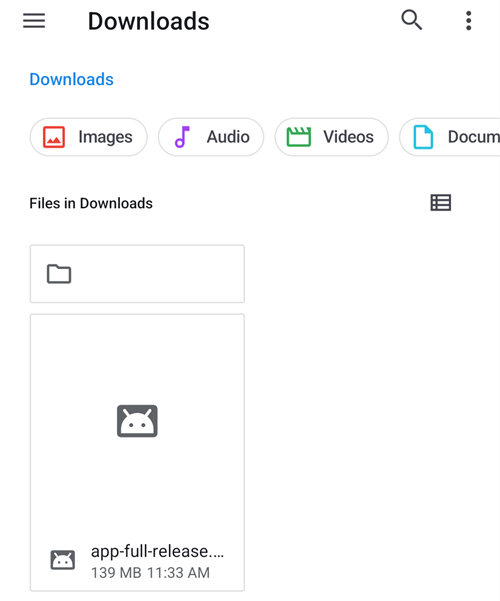
The first time, Android tells you that the phone is not allowed to install unknown apps from this source. Press “Settings”:

Enable “Allow from this source”, then go back:

Press the apk file again and select “Install”:
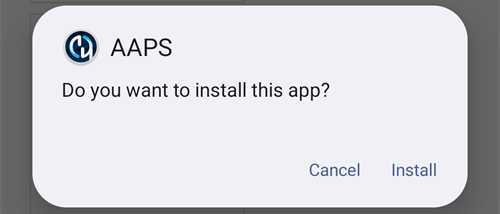
When the installation is finished, press “Open” to start AAPS, or “Done” to open it later:

Warning
IMPORTANT SAFETY NOTICE Remember to disable “Allow from this source” again after the installation, as it is a security risk to leave it enabled all the time.
Please go on with configuring the AAPS loop.
Google Play Protect warning
When you install AAPS, Google Play Protect may warn you that the app is unsafe, was built for an older version of Android and doesn’t include the latest privacy protections.

This is expected for an app you built yourself. Tap More details, then Install anyway.
If the installation is blocked with a message about an unverified developer (not just a warning), see Android developer verification below.
Android developer verification
Google is introducing Android developer verification: on most Android phones, apps will only install if they were registered with Google by a verified developer. This also applies to apps installed from an APK file (“sideloading”) — which is how you install the AAPS app you built yourself.
What is changing
When you install AAPS on a phone with Google services (a “certified” Android device — virtually every phone sold with the Play Store), Android will check whether the app comes from a developer registered with Google. If not, the normal installation by tapping the APK file is blocked.
The check happens when an app is installed or updated. It does not remove apps that are already installed and running.
Google is rolling this out gradually:
When |
What happens |
|---|---|
August 2026 |
Free “limited distribution” developer accounts are open worldwide, and the “advanced flow” starts rolling out to phones |
September 30, 2026 |
Verification is enforced in Brazil, Indonesia, Singapore and Thailand, for apps installed from Google Play and a few other app stores |
2027 |
Enforcement expands to the rest of the world and to all installations, including APK files |
Details are published by Google on the Android developer verification pages, including a FAQ. Google may still adjust dates and details; this page will be updated as the rollout progresses.
Does this affect me?
Building AAPS is not affected at all. The browser build, the Android Studio build and the CLI build work exactly as before, and your keystore does not change.
Your current AAPS keeps running. Verification is only checked when installing or updating an app.
If you live in Brazil, Indonesia, Singapore or Thailand: from September 30, 2026, verification is enforced for apps installed from Google Play and a few other app stores. Google states that installing an APK file directly is not covered by this first step, so AAPS should still install as usual. Nevertheless, prepare one of the free installation methods below now, so that you are not caught out if this changes.
If you live anywhere else: nothing changes for you before 2027, and doing nothing for now is a legitimate choice. But set up one of the free installation methods below while nothing is broken: discovering the block on the day an update is refused, with the advanced flow’s 24-hour wait ahead of you, is the wrong moment.
Old phones: verification applies to phones running Android 7 or higher, which means every phone able to run AAPS.
Free ways to install AAPS
You do not need to pay Google anything to keep using AAPS. There are several free methods; pick the one that matches your situation.
Which method should I use?
You have a computer (whichever way you built AAPS): use ADB or, if you prefer to avoid the command line, the web installer. Both are exempt from verification, have no limits, and need no Google account.
You have no computer at all: use the advanced flow on your phone.
You prefer to register with Google so the normal “tap the APK” installation keeps working: a free limited distribution account exists, but it is untested with AAPS.
Option 1: Install with ADB (computer needed)
ADB (Android Debug Bridge) is Google’s official tool for installing apps from a computer onto a phone with a USB cable. Google has confirmed that apps installed with ADB do not require verification — there is no waiting period, no device limit and no registration.
One-time preparation:
On your phone, enable the hidden developer options: go to Settings > About phone (on some phones Software information) and tap Build number seven times, until the phone confirms you are a developer.
Go back to the main Settings, open the new Developer options entry and enable USB debugging.
On your computer, make sure ADB is available:
If you use Android Studio, ADB is already installed with it.
Otherwise, download Google’s free SDK Platform Tools and unzip the folder. No installation is needed; ADB is the
adbprogram inside that folder.
Installing (and later updating) AAPS:
Connect the phone to the computer with a USB cable. There is no need to transfer the APK file to the phone first: ADB sends it straight from the computer.
On the phone, accept the Allow USB debugging? prompt (the first time only).
On the computer, open a terminal (command prompt) in the folder containing ADB and the AAPS APK file, and run:
adb install -r app-full-release.apk
Replace
app-full-release.apkwith the actual name of your APK file. The-roption updates an already installed AAPS while keeping all its data and settings.Wait for
Successto be displayed. AAPS is now installed on your phone.
The same command is used for every future update. The Wear OS pages already use ADB in the same way to install the watch app.
If you would rather not use a cable: on Android 11 and later, wireless debugging (also under Developer options) can do the same over Wi-Fi, after a one-time pairing with a code shown on the phone.
Option 2: Install from a web page (computer, no command line)
If the command line is not for you, a web page can do exactly what ADB does, directly from your browser. Because it talks to the phone through the same mechanism as ADB, it carries the same exemption from verification — but there is nothing to download, no folder to unzip and no command to type.
This is the easiest route if you used the browser build and have never opened a command line.
Enable USB debugging on the phone (steps 1 and 2 of the ADB method above — one-time setup).
Open the AAPS web installer in your browser.
Connect the phone with a USB cable and follow the instructions on the page: connect, choose your APK file, and install.
Three things to know:
It only works in Chrome, Edge or Opera. Firefox and Safari cannot talk to USB devices.
Only one program can use the phone’s ADB connection at a time, so close Android Studio (or anything else that uses ADB) before connecting.
A web page connected this way gets full control of your phone. Use only the address above, from the AAPS documentation — never an installer page found through a search engine. The AAPS web installer runs entirely in your browser: your APK file is not uploaded anywhere.
No computer? A second phone works too
The web installer also works from Chrome on another Android phone with a USB-C to USB-C cable — so a parent can install AAPS onto a child’s phone with no computer in the house.
Option 3: The “advanced flow” on your phone (no computer needed)
Google provides an escape hatch for experienced users who understand the risks of installing unverified apps, called the advanced flow. Google started rolling it out to phones in August 2026, ahead of enforcement, so you can set it up now. It is a one-time setup on the phone itself, which takes 24 hours to complete:
Enable the hidden developer options (see step 1 of the ADB method above), then open Settings > Developer options > Apps from unverified developers.
Turn on Allow apps from unverified developers. The phone asks for your screen lock to confirm it is you.
The phone asks whether someone is asking you to turn on this setting, and explains that banks, government agencies or police would never ask you to do so. Read the warning and confirm that nobody is pressuring or guiding you (this is a protection against scammers).
Restart your phone. This starts a one-time 24-hour waiting period.
After 24 hours, go back to Settings > Developer options > Apps from unverified developers to finish the setup.
Choose whether to allow unverified apps for 7 days or indefinitely. For AAPS, choose indefinitely, otherwise your next update will be blocked once the 7 days have passed.
After this setup, installing or updating the AAPS APK works as it does today, with one extra warning that the app is from an unverified developer — tap Install anyway.
Good to know:
You can turn Developer options off again afterwards: the advanced flow stays enabled. Google also does not give apps (such as banking apps) any way to detect that the advanced flow is enabled.
If you turn the advanced flow off, installing or updating AAPS is blocked again (your installed AAPS keeps running). You have a 10-minute window to turn it back on; after that, the 24-hour waiting period starts again.
Changing the phone’s clock does not shorten the waiting period, and ADB cannot skip it.
Google states that your choice follows your Google account to your other devices, so a new phone should not mean another 24-hour wait.
If you cannot find Apps from unverified developers in the developer options, your phone has not received the feature yet. It is delivered by a system component called Android Developer Verifier, which Google is rolling out gradually through the Play Store. You can help it along by opening Android Developer Verifier in the Play Store.
Note
Google describes this as a first version and may still change the screens and steps; this section will be updated with screenshots once the final version is available.
Option 4: Register with Google (free limited distribution account)
Google offers a free developer account type for hobbyists and personal use, called a limited distribution account, open to everyone since August 2026:
No government ID and no fee (unlike the paid developer account, which is not needed for personal AAPS use). You do need a Google account with 2-step verification, a Google payments profile holding your legal name and address, and a contact email address.
You register your app’s package name in Google’s Android Developer Console, and authorize the phones it may be installed on, up to 20 devices, through a handshake with a QR code or link between the phone and the console.
Once registered, the normal installation (tapping the APK file) works again on the authorized phones, without ADB and without the advanced flow.
A limited distribution account can later be upgraded to a full account, but not the other way round.
Warning
Google has not explained how registration works when many people build the same open-source app: every self-built AAPS uses the same package name (info.nightscout.androidaps) with a different signing key, and Google’s FAQ states that a package name already in use by others cannot be claimed outright and requires an additional review. The outcome of such a review is unknown, and the paid developer account ($25 and a government ID) does not help here: paying only removes the 20-device cap, not the package name review.
For this reason, step-by-step instructions cannot be written yet. This section will be completed once registration has been tested with AAPS. In the meantime, ADB, the web installer and the advanced flow above are reliable alternatives.
What does not change
Building AAPS yourself, with any of the three build methods.
Your GitHub account, your build repository (AAPS Builder) or fork, and your keystore.
Your installed AAPS app, your settings and your objectives.
Phones without Google services, and ADB installations in general.
Where to get help
Read Google’s developer verification FAQ for questions about the verification itself.
Ask on the #AAPS channel on Discord, or in one of the other community channels, if an installation is blocked.
When asking for help, include your phone make and model, Android version, your country, and the exact message displayed when the installation fails.