Accu-Chek Combo
This software is part of a DIY solution and is not a product, but requires YOU to read, learn and understand the system including how to use it. It is not something that does all your diabetes management for you, but allows you to improve your diabetes and your quality of life if you’re willing to put in the time required. Don’t rush into it, but allow yourself time to learn. You alone are responsible for what you do with it.
Accu-Chek Combo is being phased out
Roche is withdrawing from the insulin pump market to refocus its diabetes portfolio on the Accu-Chek SmartGuide CGM. It has communicated the end of sales of both the Accu-Chek Combo and Accu-Chek Insight pumps; its remaining Accu-Chek Solo micropump is also being wound down (last deliveries in Germany at the end of 2025). The change is being rolled out by region, starting in Germany, with other European markets expected to follow. If you rely on this pump, plan ahead for a transition to a supported pump.
Pump capabilities with AAPS
Communicates with AAPS over your phone’s native Bluetooth, without an additional communication device.
Automatic DST and timezone handling.
Hardware and software requirements
A Roche Accu-Chek Combo (any firmware, they all work).
A Smartpix or Realtyme device together with the 360 Configuration Software to configure the pump. (Roche sends out Smartpix devices and the configuration software free of charge to their customers upon request.)
A compatible phone running Android 12 or newer. See release notes for details.
The AAPS app installed on your phone.
Some phones may work better than others, depending on their quality of Bluetooth support and whether or not they have additional, very aggressive power saving logic. A list of phones can be found in the AAPS Phones document. Please be aware that this is not complete list and reflects personal user experience. You are encouraged to also enter your experience and thereby help others (these projects are all about paying it forward).
Before you begin
SAFETY FIRST - do not attempt this process in an environment where you cannot recover from an error. Keep your Smartpix / Realtyme device handy, along with the 360 Configuration Software. Plan on spending about an hour for setting everything up and checking that everything is working properly.
Be aware of the following limitations:
Extended bolus and multiwave bolus are currently not supported (you can use Extended Carbs instead).
Only one basal profile (the first one) is supported.
The lowest basal rate in your Profile is 0.05 U/h. AAPS refuses a Profile with a lower rate. The Combo rounds basal rates to its own steps (0.01 U/h below 1 U/h, 0.05 U/h up to 10 U/h, 0.1 U/h above). AAPS uses the rates the pump really gives.
Temporary basal rates are limited to 500% of the current basal rate. AAPS takes this limit into account.
The loop is disabled if the currently active profile on the pump isn’t profile no. 1. This continues until profile no. 1 is made the active one; when that is done, the next time AAPS connects (either on its own after a while or because you tap Refresh on the Accu-Chek Combo pump screen), it will notice that profile no. 1 is the current one, and enable the loop again.
If the loop requests a running TBR to be cancelled, the Combo will set a TBR of 90% or 110% for 15 minutes instead. This is because actually cancelling a TBR causes an alert on the pump which causes a lot of vibrations, and these vibrations cannot be disabled.
Bluetooth connection stability varies with different phones, causing “pump unreachable” alerts, where no connection to the pump is established anymore. If that error occurs, make sure Bluetooth is enabled, tap Refresh on the pump screen (Manage > Pump) to see if this was caused by an intermittent issue and if still no connection is established, reboot the phone which should usually fix this.
There is another issue where a restart doesn’t help but a button on the pump must be pressed (which resets the pump’s Bluetooth stack), before the pump accepts connections from the phone again.
Setting a TBR on the pump is to be avoided since the loop assumes control of TBRs. Detecting a new TBR on the pump might take up to 20 minutes and the TBR’s effect will only be accounted from the moment it is detected, so in the worst case there might be 20 minutes of a TBR that is not reflected in IOB.
The driver is currently written to support the following languages on the Combo. (This is unrelated to the language in AAPS - it is the language shown on the Combo’s LCD itself.)
English
Spanish
French
Italian
Russian
Turkish
Polish
Czech
Hungarian
Slovak
Romanian
Croatian
Dutch
Greek
Finnish
Norwegian
Portuguese
Swedish
Danish
German
Slovenian
Lithuanian
Important: If your pump is set to a language that is not part of this list, please contact the developers, and set the pump’s language to one in this list. Otherwise, the driver won’t work properly.
Phone setup
It is very important to make sure that battery optimizations are turned off. AAPS already auto-detects when it is subject to these optimizations, and requests in its UI that these be turned off. But, on modern Android phones, Bluetooth itself is an app (a system app). And, usually, that “Bluetooth app” is run with battery optimizations on by default. As a result, Bluetooth can refuse to respond when the phone aims to save power because it kills off the Bluetooth app. This means that in that Bluetooth system app’s settings, battery optimizations must be turned off as well. Unfortunately, how one can find that Bluetooth system app differs between phones. In stock Android, go to Settings -> Apps -> See all N apps (N = the number of apps on your phone). Then, open the menu to the top right corner, tap on “Show system” or “Show system apps” or “All apps”. Now, in the newly expanded list of apps, look for a “Bluetooth” app. Select it, and on its “App info” UI, tap on “Battery”. There, disable battery optimizations (sometimes called “battery usage”).
Combo setup
Configure the pump using the Accu-Chek 360 Configuration Software. If you do not have the software, please contact your Accu-Chek hotline. They usually send registered users a CD with the “360° Pump Configuration Software” and a SmartPix USB-infrared connection device (the Realtyme device also works if you have that).
Required settings (marked green in screenshots):
Set/leave the menu configuration as “Standard”, this will show only the supported menus/actions on the pump and hide those which are unsupported (extended/multiwave bolus, multiple basal rates), which cause the loop functionality to be restricted when used because it’s not possible to run the loop in a safe manner when used.
Verify the Quick Info Text is set to “QUICK INFO” (without the quotes, found under Insulin Pump Options).
Set TBR Maximum Adjustment to 500%
Disable Signal End of Temporary Basal Rate
Set TBR Duration increment to 15 min
Enable Bluetooth
Recommended settings (marked blue in screenshots)
Set low cartridge alarm to your liking
Configure a max bolus suited for your therapy to protect against bugs in the software
Similarly, configure maximum TBR duration as a safeguard. Allow at least 3 hours, since the option to disconnect the pump for 3 hours sets a 0% for 3 hours.
Enable key lock on the pump to prevent bolusing from the pump, esp. when the pump was used before and quick bolusing was a habit.
Set display timeout and menu timeout to the minimum of 5.5 and 5 respectively. This allows the AAPS to recover more quickly from error situations and reduces the amount of vibrations that can occur during such errors


Activating the driver and pairing it with the Combo
Open the menu (☰) in the top-left corner, go to Configuration > Pump and select Accu-Chek Combo.

Once it is selected, the Accu-Chek Combo card shows two buttons, Settings and Open plugin:

Settings opens the settings of the Accu-Chek Combo driver (see Settings below):

Open plugin (or Manage > Pump) opens the Accu-Chek Combo pump screen. Before a pump is paired it shows Not paired to a pump:

On the pump screen, tap Pairing. The Pair with pump screen opens. Follow the steps shown on screen, then tap Start pairing. When Android asks for permission to make the phone visible to other Bluetooth devices, tap Allow. Eventually, the Combo shows a 10-digit pairing PIN on its screen, and AAPS asks for it. Enter that PIN in the 10-digit PIN field.

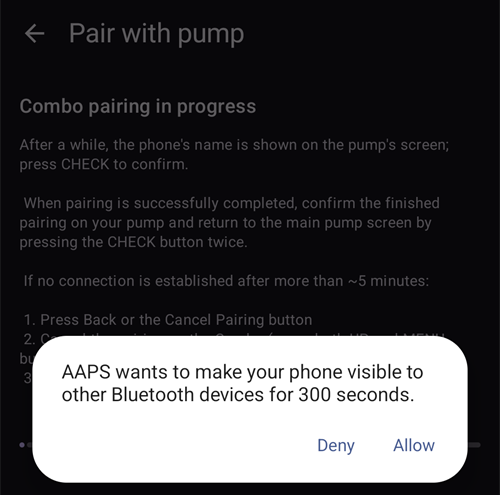

The next pictures are from an older AAPS version. The steps and texts are the same, but the screens look slightly different.


If the PIN is entered incorrectly, AAPS shows PIN did not work. Check if there was a typo. If this keeps happening, cancel and retry pairing.

When Successfully paired with Combo is shown, tap OK. You return to the pump screen, which now shows the pump status (see Accu-Chek Combo pump screen contents below). The Pairing button is replaced by Unpair.
To verify your setup (with the pump disconnected from any cannula to be safe!) use AAPS to set a TBR of 500% for 15 min and issue a bolus. The pump should now have a TBR running and the bolus in the history. AAPS should also show the active TBR and delivered bolus.
On the Combo, it is recommended to enable the key lock to prevent bolusing from the pump, esp. when the pump was used before and using the “quick bolus” feature was a habit.
Notes about pairing
The Accu-Chek Combo was developed before Bluetooth 4.0 was released, and just one year after the very first Android version was released. This is why its way of pairing with other devices is not 100% compatible with how it is done in Android today. To fully overcome this, AAPS would need system level permissions, which are only available for system apps. These are installed by the phone makers into the phone - users cannot install system apps.
The consequence of this is that pairing will never be 100% without problems. In particular, during pairing, Android’s Bluetooth PIN dialog can briefly show up and automatically go away. But sometimes, it stays on screen, and asks for a 4-digit PIN. (This is not to be confused with the 10-digit Combo pairing PIN.) Do not enter anything, just press cancel. If pairing does not continue, follow the instructions on screen to retry the pairing attempt.
Accu-Chek Combo pump screen contents
To open the pump screen, go to Manage > Pump. Once a pump is paired, it shows the following information (items are listed from top to bottom):

Driver state: The driver can be in one of the following states:
Disconnected: There is no Bluetooth connection; the driver is in this state most of the time, and only connects to the pump when needed - this saves power
Connecting
Checking pump: the pump is connected, but the driver is currently performing safety checks to ensure that everything is OK and up to date
Ready: the driver is ready to accept commands from AAPS
Suspended: the pump is suspended (shown as “stopped” in the Combo)
A description of the command being executed, for example Setting basal profile or Updating pump status
Error: an error occurred; the connection was terminated, any ongoing command was aborted
Last connection: How many minutes ago the driver successfully connected to the Combo; if this goes beyond 30 minutes, this item is shown with a red color
Battery: Battery level; the Combo only indicates Full, Low or Empty, and does not offer anything more accurate (like a percentage), so only these three levels are shown here
Reservoir: How many IU are currently in the Combo’s reservoir
Last bolus: How many minutes ago the last bolus was delivered; if none was delivered yet after AAPS was started, this is not shown
Temp basal: Details about the currently active temporary basal; if none is currently active, this is not shown
Base basal rate: Currently active base basal rate (“base” means the basal rate without any active TBR influencing the basal rate factor)
Serial number: Combo serial number as indicated by the pump (this corresponds to the serial number shown on the back of the Combo)
Bluetooth address: The Combo’s 6-byte Bluetooth address, shown in the
XX:XX:XX:XX:XX:XXformat
While the driver is doing something (for example, setting a basal profile), a box below the list describes the current activity, with a thin progress bar showing the progress.
The Combo can be operated through Bluetooth in the remote-terminal mode or in the command mode. The remote-terminal mode corresponds to the “remote control mode” on the Combo’s meter, which mimics the pump’s LCD and four buttons. Some commands have to be performed in this mode by the driver, since they have no counterpart in the command mode. That latter mode is much faster, but, as said, limited in scope. When the remote-terminal mode is active, the current remote-terminal screen is shown in the field that is located just above the Combo drawing. When the driver switches to the command mode however, that field is left blank.
(You do not influence this; the driver fully decides on its own what mode to use. This is merely a note for you to know why sometimes you can see Combo frames in that field.)
At the bottom, there are these buttons:
Refresh: Triggers an immediate pump status update. It is also used to let AAPS know that a previously discovered error is now fixed and that AAPS can check again that everything is OK (more on that below in the section about alerts). You can only tap it when the driver is disconnected, suspended or in the error state.
Unpair: Unpairs the paired Combo from AAPS and Android, after you confirm Do you really want to unpair the pump?. When no pump is paired, this button is replaced by Pairing.
Settings
These settings are available for the Combo driver (Configuration > Pump > Accu-Chek Combo > Settings, or the settings icon (cog wheel) on the pump screen). Items are listed from top to bottom:
Discovery duration (in seconds): When pairing, the driver makes the phone discoverable by the pump. This controls how long that discoverability lasts. By default, the maximum (300 seconds = 5 minutes) is selected. Android does not allow for discoverability to last indefinitely, so a duration has to be chosen.
Autodetect and automatically enter insulin reservoir change: If enabled, the driver enters the “reservoir change” that you would normally enter yourself with Manage > Prime/Fill. This is explained in further detail below.
Autodetect and automatically enter battery change: If enabled, the driver enters the “battery change” that you would normally enter yourself with Manage > Pump Battery Change. This is explained in further detail below.
Enable verbose Combo logging: This greatly expands the amount of logging done by the driver. CAUTION: Do not enable this unless asked to by a developer. Otherwise, this can add a lot of noise to AAPS logs and lessen their usefulness.
Pairing and unpairing are done on the pump screen, not in the settings (see above).
Autodetecting and automatically entering battery and reservoir changes
The driver is capable of detecting battery and reservoir changes by keeping track of the battery and reservoir levels. If the battery level was reported by the Combo as low the last time the pump status was updated, and now, during the new pump status update, the battery level shows up as normal, then the driver concludes that the user must have replaced the battery. The same logic is used for the reservoir level: If it now is higher than before, this is interpreted as a reservoir change.
This only works if the battery and reservoir are replaced when these levels are reported as low and the battery and reservoir are sufficiently filled.
These autodetections can be turned off in the driver settings.
Alerts (warnings and errors) and how they are handled
The Combo shows alerts as remote-terminal screens. Warnings are shown with a “Wx” code (x is a digit), along with a short description. One example is “W7”, “TBR OVER”. Errors are similar, but show up with an “Ex” code instead.
Certain warnings are automatically dismissed by the driver. These are:
W1 “reservoir low” : the driver turns this into a “low reservoir” warning that is shown on the AAPS main screen
W2 “battery low” : the driver turns this into a “low battery” warning that is shown on the AAPS main screen
W3, W6, W7, W8 : these are all purely informational for the user, so it is safe for the driver to auto-dismiss them
Other warnings are not automatically dismissed. Also, errors are never automatically dismissed. Both of these are handled the same way: They cause the driver to produce an alert dialog on top of the AAPS UI, and also cause it to abort any ongoing command execution. The driver then switches to the “error” state (see the Accu-Chek Combo pump screen contents above). This state does not allow for any command execution. The user has to handle the error on the pump; for example, an occlusion error may require replacing the cannula. Once the user took care of the error, normal operation can be resumed by tapping Refresh on the Accu-Chek Combo pump screen. The driver then connects to the Combo and updates its status, checking for whether an error is still shown on screen etc. Also, the driver auto-refreshes the pump status after a while, so manually pressing that button is not mandatory.
Bolusing is a special case. It is done in the Combo’s command mode, which does not report mid-bolus that an alert appeared. As a consequence, the driver cannot automatically dismiss warnings during a bolus. This means that unfortunately, the pump will be beeping until the bolus is finished. The most common mid-bolus alert typically is W1 “reservoir low”. Don’t dismiss Combo warnings on the pump itself manually during a bolus. You risk interrupting the bolus. The driver will take care of the warning once the bolus is over.
Alerts that happen while the driver is not connected to the Combo will not be noticed by the driver. The Combo has no way of automatically pushing that alert to the phone; it is always the phone that has to initiate the connection. As a consequence, the alert will persist until the driver connects to the pump. You can tap Refresh on the pump screen to trigger a connection and let the driver handle the alert right then and there (instead of waiting until AAPS itself decides to initiate a connection).
IMPORTANT: If an error occurs, or a warning shows up that isn’t one of those that are automatically dismissed, the driver enters the error state. In that state, the loop WILL BE BLOCKED until the pump status is refreshed! It is unblocked after the pump status is updated (either by tapping Refresh or by the driver’s eventual auto-update) and no error is shown anymore.
Things to be careful about when using the Combo
Keep in mind that this is not a product, esp. in the beginning the user needs to monitor and understand the system, its limitations and how it can fail. It is strongly advised NOT to use this system when the person using it is not able to fully understand the system.
Due to the way the Combo’s remote control functionality works, several operations (especially setting a basal profile) are slow compared to other pumps. This is an unfortunate limitation of the Combo that cannot be overcome.
Don’t set or cancel a TBR on the pump. The loop assumes control of TBRs and cannot work reliably otherwise, since it’s not possible to determine the start time of a TBR that was set by the user on the pump.
Don’t press any buttons on the pump while AAPS communicates with the pump (the Bluetooth logo is shown on the pump while it is connected to AAPS). Doing that will interrupt the Bluetooth connection. Only do that if there are problems with establishing a connection (see the “Before you begin” section above).
Don’t press any buttons while the pump is bolusing. In particular, don’t try to dismiss alerts by pressing buttons. See the section about alerts for a more detailed explanation why.
Checklist for when no connection can be established with the Combo
The driver does its best to connect to the Combo, and uses a couple of tricks to maximize reliability. Still, sometimes, connections aren’t established. Here are some steps to take for trying to remedy this situation.
Press a button on the Combo. Sometimes, the Combo’s Bluetooth stack becomes non-responsive, and does not accept connections anymore. By pressing a button on the Combo and making the LCD show something, the Bluetooth stack is reset. Most of the time, this is the only step that’s needed to fix the connection issues.
Restart the phone. This may be needed if there is an issue with the phone’s Bluetooth stack itself.
If the Combo’s battery cap is old, consider replacing it. Old battery caps can cause issues with the Combo’s power supply, which affect Bluetooth.
If connection attempts still keep failing, consider unpairing and then re-pairing the pump.
Tips for basic usage
How to ensure smooth operations
Always carry the smartphone with you, leave it next to your bed at night. As your pump may lay behind or under your body while you sleep, a higher position (on a shelf or board) works best.
Always make sure that the pump battery is as full as possible. See the battery section for tips regarding the battery.
Whenever possible, only operate the pump via the AAPS app. To facilitate this, activate the key lock on the pump under PUMP SETTINGS / KEY LOCK / ON. Only when changing the battery or the cartridge, it is necessary to use the pump’s keys.

Pump not reachable. What to do?
Activate pump unreachable alarm
In AAPS, tap the Settings (gear) icon at the top right of the main screen, go to Local alerts, activate Alert if pump is unreachable and set Pump unreachable threshold to 31 minutes.
This will give you enough time to not trigger the alarm when leaving the room while your phone is left on the desk, but informs you if the pump cannot be reached for a time that exceeds the duration of a temporary basal rate.
Restore reachability of the pump
When AAPS reports a pump unreachable alarm, first release the keylock and press any key on the pump (e.g. “down” button). As soon as the pump display has turned off, tap Refresh on the Accu-Chek Combo pump screen (Manage > Pump). Mostly then the communication works again.
If that does not help, reboot your smartphone. After the restart, AAPS will be reactivated and a new connection will be established with the pump.
The tests with different smartphones have shown that certain smartphones trigger the “pump unreachable” error more often than others. See AAPS Phones for successfully tested smartphones.
Root causes and consequences of frequent communication errors
On phones with low memory (or aggressive power-saving settings), AAPS is often shut down. You can tell by the fact that the treatment buttons (QuickLaunch toolbar) on the main screen are not shown when opening AAPS because the system is initializing. This can trigger “pump unreachable alarms” at startup. In the Last connection field of the pump screen (Manage > Pump), you can check when AAPS last communicated with the pump.

This error can drain the pump’s battery faster because the basal profile is read from the pump when the app is restarted.
It also increases the likelihood of causing the error that causes the pump to reject all incoming connections until a button on the pump is pressed.
Cancellation of temporary basal rate fails
Occasionally, AAPS cannot automatically cancel a TBR CANCELED alert. Then you have to either tap Refresh on the Accu-Chek Combo pump screen or the alarm on the pump will need to be confirmed.
Pump battery considerations
Changing the battery
After a low battery alarm, the battery should be changed as soon as possible to always have enough energy for a reliable Bluetooth communication with the smartphone, even if the phone is within a wider distance of the pump.
Even after a low battery alarm, the battery might be used for a significant amount of time. However, it is recommended to always have a fresh battery with you after a “low battery” alarm rang.
Before changing the battery, press on the Loop symbol on the main screen and select Suspend loop for 1 hour.
Wait for the phone to communicate with the pump and for the Bluetooth logo on the pump to fade.

Release the key lock on the pump, put the pump into stop mode, confirm a possibly canceled temporary basal rate, and change the battery quickly.
You don’t need to re-set the pump’s clock after the battery change: AAPS automatically updates the pump’s date and time.
Then put the pump back in run mode and select Resume when pressing on the Suspended Loop icon on the main screen.
AAPS will re-set a necessary temporary basal rate with the arrival of the next blood sugar value.
Battery type and causes of short battery life
As intensive Bluetooth communication consumes a lot of energy, only use high-quality batteries like Energizer Ultimate Lithium, the “power one”s from the “large” Accu-Chek service pack, or if you are going for a rechargeable battery, use Eneloop batteries.


Ranges for typical life time of the different battery types are as follows:
Energizer Ultimate Lithium: 4 to 7 weeks
Power One Alkaline (Varta) from the service pack: 2 to 4 weeks
Eneloop rechargeable batteries (BK-3MCCE): 1 to 3 weeks
If your battery life is significantly shorter than the ranges given above, please check the following possible causes:
There are some variants of the screw-on battery cap of the Combo pump, which partially short circuit the batteries and drain them quickly. The caps without this problem can be recognized by the golden metal contacts.
If the pump clock does not “survive” a short battery change, it is likely that the capacitor is broken which keeps the clock running during a brief power outage. In this case, a replacement of the pump by Roche might help, which is not a problem during the warranty period.
The smart phone hardware and software (Android operating system and Bluetooth stack) also impact the battery lifetime of the pump, even though the exact factors are not completely known yet. If you have the opportunity, try another smartphone and compare battery lifetimes.
Extended bolus, multiwave bolus
The OpenAPS algorithm does not support a parallel extended bolus or multiwave bolus. But a similar treatment can be achieved by the following alternatives:
Use e-Carbs when entering carbs or using the Bolus wizard by entering the carbs of the full meal and the duration you expect the carbs to arrive as glucose in your blood. The system will then calculate small carbs equally distributed over the whole duration which will cause the algorithm to provide equivalent insulin dosing while still permanently checking the overall rise/decrease of the blood glucose level. For a multiwave bolus approach, you can also combine a smaller immediate bolus with e-carbs.
Before eating, set a temporary Eating Soon target of 80 mg/dL (4.4 mmol/L) for several hours (press the target on the main screen, or Manage > Temp Target). The duration should be based on the interval you would choose for an extended bolus. This will keep your target lower than usual and therefore increase the amount of insulin delivered.
Then use the Bolus wizard to enter the full carbs of the meal, but do not directly apply the values it suggests. If a multiwave-like bolus is to be delivered, correct the insulin dosage down. Depending on the meal, the algorithm now has to deliver additional SMBs or higher temporary basal rates to counteract the increase in blood sugar. Here, the safety limitation of the basal rate (Max U/h, Maximum basal IOB) should be very carefully experimented with and, if necessary, temporarily changed.
Don’t use the extended or multiwave bolus directly on the pump. The driver does not support them (see Before you begin); if a multiwave bolus is given on the pump anyway, AAPS records it from the pump history as a normal bolus plus an extended bolus, so it is counted in IOB. An extended bolus does not work in a closed loop environment (see this page for details).
Alarms at bolus delivery
After each bolus, the driver reads the pump’s bolus history. This is a safety mechanism to correctly calculate insulin on board (IOB), even when a bolus is delivered directly from the pump.
Before a bolus, if the pump history has a bolus that AAPS did not know about (for example, a bolus given directly on the pump), the requested bolus is not given, because it was calculated without that insulin. AAPS shows The pump history has a bolus that AAPS did not know about. The requested bolus was not given… Check the bolus history on the pump and your IOB. If a bolus is still needed, calculate it again. This also applies when the unknown bolus is found on a new connection.
If the bolus was given but the pump history also had other boluses that AAPS did not know about, they are recorded now and AAPS asks you to check IOB before the next bolus.
If the connection to the pump is lost during a bolus, AAPS does not record 0 U: it shows how much the pump had given by then and warns that the pump may still give the rest. Do not bolus again. AAPS reads the real amount from the pump history at the next connection.
If the connection is lost while AAPS sends the bolus, it is not known whether the pump got it. Check the bolus history on the pump before the next bolus.
If AAPS cannot confirm that a bolus was delivered, it shows Bolus delivery failed. It appears no bolus was delivered. To be sure, please check the pump to avoid a double bolus and then bolus again. Boluses are never retried automatically.
Where to get help
Development of the Combo driver is done by the community on a volunteer basis. Before requesting help, please:
Read the relevant section of this documentation to confirm how the feature is meant to work.
Ask on the #AAPS channel on Discord, or in one of the other community channels.
Report a bug by searching the existing issues; if yours is not listed, open a new issue and attach your log files.
When asking for help, include your phone make and model, Android version, AAPS version, and a plain-English description of the problem (what changed, when it last worked).